The TNT Tab in the Contacts area is the core financial information area about your contacts. This page tells you the TNT Phase of the contact, from stranger to committed financial giver or pray-er, as well as who referred this contact, all of their gifts to date, whether they get your newsletter or not, etc. This section covers these concepts in brief. They are expanded on subsequent topics.
Overview
The TNT Tab contains the primary fields that define a contact's financial partnership on your team.

TNT Tab fields
TNT Phase
|
The point your contact is at on the support cycle for your team.
|
Next Ask
|
To schedule a future “ask” time. Tip: Almost all of your contacts should be challenged at some point in the future.
|
Pledge
|
Dollar amount and frequency of pledge. Check box indicates they have begun fulfilling their pledge. Tip: Do not check the box when you record the pledge. TntConnect will check the box when you receive/download the next gift.
Video: Entering Pledges
Video: Tracking Pledge Changes using Log History
|
Region
|
Geographically combine your contacts. Useful for lookups and future support maintenance. You define regions that work for you.
|
Referred by
|
Type the name of the person who gave you their name. If “Referred by” is bold (as shown in picture above), that indicates this contact has several referrers; click on the bold letters to see the whole list. If you have multiple referrers, the one you select before clicking OK will become the "Primary" referrer.
|
Likely to Give
|
To assist in future fund-raising, you can assign one of three likely-to-give levels.
|
Currency
|
(If enabled in Tools | Options | Currencies)
Displays the default currency for this contact. This controls the currency used in the chart of gifts as well as the default currency used when manually adding a gift for this contact.
|
Fund Rep
|
Only available when TntConnect Pro is turned on. This allows a contact to be assigned to a fund development representative.
|
Estimated Capacity
("Est. Capacity")
|
Only available when TntConnect Pro is turned on and is used in conjunction with the Campaign Builder. TntConnect automatically estimates capacity based on a contact's best year of the previous three years. But you can override TntConnect's estimate by entering a value in this field. This is helpful when you feel you have a more accurate view of this contact's capacity than their three-year giving history may imply.
|
Next Ask Amount
|
Amount to challenge for next ask. This field is not named and is adjacent to the "Next Ask" field. It is only valid when the "Never Ask" checkbox is not checked.

|
There are four check boxes for doing future lookups and analysis of your team:
Send Newsletter
|
For people who receive your newsletter. This checkbox (true/false) is used when doing the Newsletter Recipients and Relevant Contacts lookups.
|
Deceased
|
To avoid the loss of financial history, do not delete a donor who is deceased. TntConnect does several things automatically once you check this box to make it apparent when a contact is deceased.
|
Direct Deposit
|
In some countries, ministry partners can give recurring gifts directly via their bank accounts. This check box helps you track who those are.
|
Magazine
|
If your organization has one, check this box to indicate who you send this magazine to.
|
Giving

The Gifts list will also display any Gift Memo (from your organization) or any Special Ask Appeal related to a gift.
To add, delete, and edit gifts: Giving History.
You can add a new gift from this screen in two ways:
| 1. | Right-click inside the Gifts list and select "Add new gift", or |
| 2. | Press the Add new gift... button.  |
The box on the right is a graphic history of this contact’s giving. You can choose how many periods to view, as well as whether you want to view just this contact or the Current Group of contacts. The Current Group is the list of contacts to the left (not shown in the above picture).
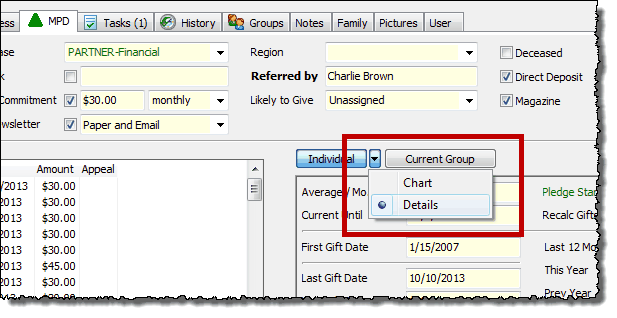
Tip: View Giving Details right on the TNT Tab
You can view an individual contact's Giving Details by clicking on the small drop-down arrow between the two buttons.

|
View Details right on the TNT Tab! This feature, formerly available only on the Contact Menu, now puts each donor's giving history right on the TNT Tab.
The information in these 16 Giving Details fields are really interesting! And, you can use these fields in Lookups, when Exporting the Current Group, or even include them in Mail Merges.

|