“Soon afterwards, He (Jesus) began going around from one city and village to another, proclaiming and preaching the kingdom of God. The twelve were with Him, and also some women and many others who were contributing to their support out of their private means.” Luke 8:1-3
“You yourselves also know, Philippians, that at the first preaching of the gospel, after I left Macedonia, no church shared with me in the matter of giving and receiving but you alone; for even in Thessalonica you sent a gift more than once for my need.” Paul, in Philippians 4:15-16
God’s work is accomplished by people, and the normal method of God’s provision for those in His service is through the generous contributions of individuals and churches.
TntConnect makes it easy to collect, store, and search on a variety of information about your contacts.
The Contact View
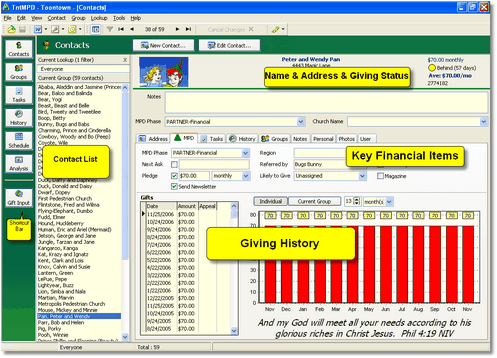
Attributes of the Contact View
Tip: Toggle View
In the Contact View, use F2 & F3 to toggle buttons or contact list on/off. This is not as big an issue with today's high resolution monitors, but with low resolution monitors, turning off these two items expands the room to view contact information.
If the Current Group is not your whole contact list, you can toggle between the Current Group and "Everyone" by pressing the Lookup Everyone button.
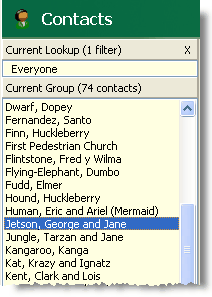
| 2. | Current Group of contacts |
The name of the Current Lookup and the Current Group, with the number of contacts who are in the current group.
Name & Address Bar
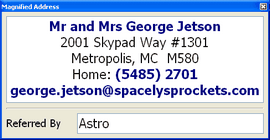
The "Name & Address Bar" is the area at the top where the selected contact's address, phone, and e-mail are shown. The amount of information shown is limited, so a longer address will push phone and e-mail down, possibly below where you can see.
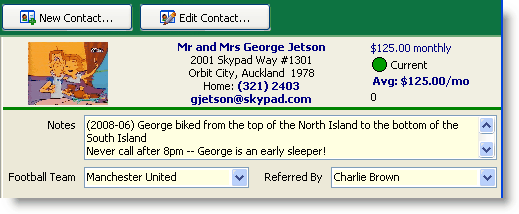
The address will be bold and orange if it there is an unresolved discrepancy for this contact's address or phone, or crossed out if it is "marked as undeliverable" (either manually marked or automatic if it is incomplete). Click on the name to edit the name & address. Deceased contacts will also appear, with an undeliverable address.

Tip: Enlarge Name & Address bar with F12
Read More > Managing Contacts
Tip: Name & Address Bar hotspots
You can click (or double-click) on almost anything in the Name & Address bar and act on it
| • | Picture [even if there is no picture] |
| • | Name & Address [to edit] |
| • | Phone number [to initiate a call task] |
| • | E-mail [to initiate an e-mail using your e-mail provider] |
| • | Summary Data: TNT Phase, Status Dot, or Monthly Average [opens the TNT Tab] |
| • | Summary Data: Organization Account Number [opens View Organization Info] |
Tip: Quick task for phone call
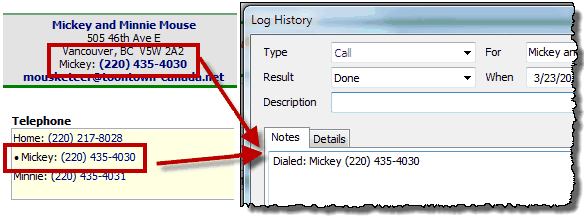
Click on a contact's phone number in the Name & Address bar (or Telephone box) and TntConnect will automatically pop up a Call Log History, and will paste the selected phone number right in the history notes. This only works if your TntConnect is set to NOT use the Auto-Dialer. The first time you click a phone number, TntConnect will ask you if you want to enable/disable the Windows Auto-Dialer.
Tip: Google Maps & WhitePages.com
Two bars in the button bar help connect you with your partners.
Show Google Maps
|
Maps the address of the selected contact, if possible.
|
Lookup on WhitePages.com
|
Looks for information on this contact. This button is only displayed if the selected contact is in the United States.
|
Export to Microsoft Streets & Trips
|
(On the Group Actions menu)
If you have Microsoft Streets and Trips 2007 or above, TntConnect will recognize that and provide a link to MS&T on the Group Actions menu.
|
Read More
Read More > Tutorial: Adding/Editing a Contact