Six Ways to Add Contacts
Each of these methods has pros and cons. Method and best reason to use this method:
|
|
Adding an individual contact.
|
|
|
You have just received several new names from an existing contact, and have very limited information about these new contacts.
|
|
|
To import an existing database you have saved as a text file. Best for first-time users who have been managing their contacts in another software.
|
|
|
To import an existing contact list from Outlook. You may find it easier to export from Outlook to text first.
|
|
|
If you are manually entering a set of contacts from paper.
|
Automatic Download from your organization’s donor files. (Both menu items do the same thing.)
|
If your organization supports this method, this is a fast way to populate your database with those who have given financially. Note that the information your organization has on your ministry partners may not exactly match your list.
|
Adding/Editing a Contact
| 1. | Press the desired button at the top of the screen. |
You can also add contacts from the menu (Contact | New Contact)
You can edit contact information by double-clicking the yellow boxes on the Address tab, or clicking on the contact's name in the Name & Address Bar.
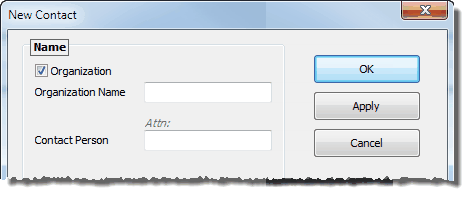
If the contact is an Organization, check the Organization box. When you do this, all of the personal name boxes will disappear, and only the Organization Name and Organization Contact Person fields will remain. When the contact is an organization, the default address and phone are Business instead of Home.
| 2. | Enter the Name information. |
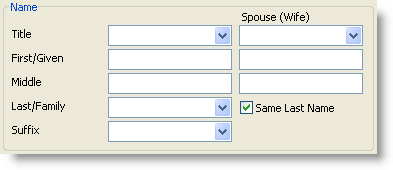
| • | If the contact is a single person (whether they are married or not), enter all of their information in the first column of boxes. |
| • | If they are married, put the husband's name in the first column and the wife's name in the second column. (Although the software will work either way, as a best practice it is better to be consistent with names in the database.) |
| • | If the wife has a different last name, uncheck the "Same Last Name" box and a last name box will appear for her. |
| • | Title can be a common title such as "Mr." "Mrs." (or one relevant to the language/culture) as well as honorary titles such as Pastor, Rev., Dr., or a military rank such as CAPT, GEN., etc. The list populates only from your entries, not a standard list of titles. |
| • | Suffix can be a name or a title. For example, it could be Jr, Sr, II, III, or it could be a title such as Ph.D., JD, or a military designation, etc. |
|
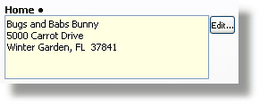
| 3. | Enter the address, phone, and e-mail by double-clicking in the yellow box. |
Editing an individual entry in the address or phone
Double-click in any of the six boxes to edit just that item.
Other Name/Address Options
These two buttons allow for customization of individual names or addresses as they would appear on envelopes or in letters. In general you should not need to customize either greetings or mailing addresses.

|
Update the Greetings if you want to manually create a greeting for this contact. There are four different types of Greetings because different cultures may dictate different greetings depending on whether it is a letter, email, etc.
|

|
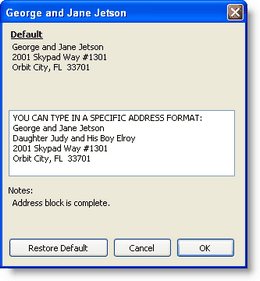
Update the Address Block if you need a unique address. For example, the address block may say "Mr. and Mrs. George Jetson", but you want it to say "Uncle George and Aunt Jane".
|
Tip: You can change the default entry order of either the name and/or the address on the options menu.
Read More > International Tab
Address Tips
Tip: Name & Address Bar hotspots
You can click (or double-click) on almost anything in the Name & Address bar and act on it
| • | Picture [even if there is no picture] |
| • | Name & Address [to edit] |
| • | Phone number [to initiate a call task] |
| • | E-mail [to initiate an e-mail using your e-mail provider] |
| • | Summary Data: TNT Phase, Status Dot, or Monthly Average [opens the TNT Tab] |
| • | Summary Data: Organization Account Number [opens View Organization Info] |
Tip: Using Titles or Not
TntConnect uses the Title (Mr/Mrs) to define the Full Name, which is used in the Mailing Address Block. When you do use titles, TntConnect will show only the husband's name in the Name & Address bar. However, the spouse's name will still be in the Current Group list.
Tip: Unknown spouse. Question: What if the contact is a couple but I do not know the husband's name?
Put the wife's name as the primary contact, and use "Mrs" in the title field to indicate she is married. In the Notes field, type something relevant that describes why his name is not in the name fields, such as "Husband unknown." or "Husband (Bill) does not know the Lord."
TntConnect is pretty flexible with names, but one thing it will not allow is a contact with a spouse (wife) name entered but not a primary name.
This is a more obvious issue when the husband is unknown because the guideline is that the husband's name always goes first. But when the husband is unknown, you have to choose how to resolve that. When the wife is unknown, you can treat the husband as if he is single, and TntConnect will not notice the difference.
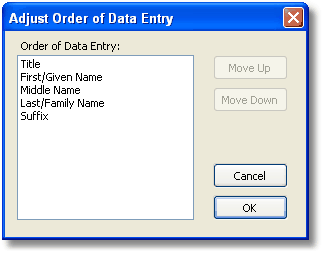
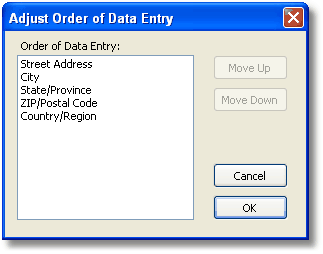
Tip: Adjust Data Entry Order for names or addresses
If you do not like the order that names or addresses are entered, you can adjust them on the International Tab.
Tip: Address / Phone numbers out of sync with your organization
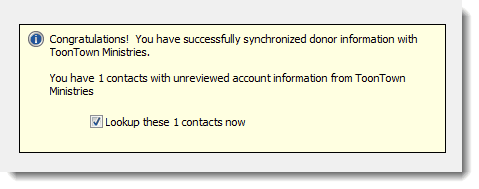
Out of sync. When a contact’s address/phone in TntConnect has an unresolved discrepancy with your organization’s address/phone, their address/phone will be bold and orange. There is a special Lookup just to find and resolve all these issues
Click on the red address or phone to view your organization's information.
If you see the organization's address is one you know is an old address, contact the office so they can update their address.
Note: TntConnect will only compare your organization's address with your database when you use the Update Donor Info feature. It will not make this comparison on an ongoing basis as you download gifts. When you do an Address Input from Web, it will clear any choices you made previously about whether to accept TntConnect or accept your organization.
To force your database to check addresses with your organization, select
Tip: Mailing Address Block
Remember that for envelopes, TntConnect will ignore the recipient’s Country if it is the same as the country you are mailing from. This is defined in the Options. (More literally, this is pre-defined by TntConnect in a field called the "Mailing Address Block", which TntConnect creates by putting all the address fields together for the one address you have selected as the 'primary' address.)
You can manually modify the Mailing Address Block. You may want to do this when the block would have a unique wording. Press the <Addr Block> button on the address edit screen.
Example: You may want to address to "The Jetson Family" or "Uncle George & Aunt Jane".