Video: Backup on Thumb Drive
Because your TntConnect database is "mission critical", literally, critical to your mission, TntConnect performs automatic backups of your database when you:
| • | Exit TntConnect (unless you turned that option off in the Options) |
| • | Upgrade from a previous version 1.6 to 2.0 or 2.0 to 2.1, etc. |
| • | Import contacts from a text file |
| • | Merge your database with another one |
Defining Backup Location
TntConnect will choose a backup location automatically, or you can specify the automatic backup location in your installation options. Once you set a location, that location will carry over even to future upgrades.
Manual Backups
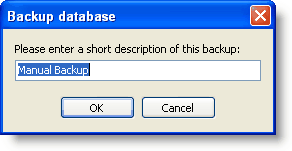
Although TntConnect performs auto-backups as described above, you can manually backup your file.
Restoring a Backup
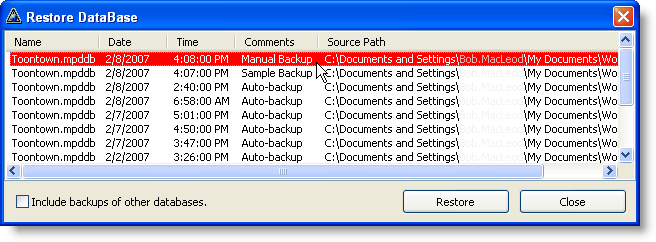
You can restore either a manual or auto-backup. TntConnect will browse to your backup folder and show you all of your recent backups, both manual and automatic.
External Backups
Although TntConnect automatically backs up your database, it only backs up to your hard drive (by default). If your database is also on your hard drive, then your data is only as secure as your hard drive, either from crashing, theft, or act of God (e.g., fire). You should regularly back up your TntConnect database to an external location, such as a CD/DVD or a flash drive, so that you have a separate copy of your database.
Read More > Copying your Database
Video: Backup on Thumb Drive
Video: TntConnect Database on Dropbox
FAQ on using Dropbox