TntMPD
Powerful software for ministry partner development...
Import Contacts

Contents

Introduction
Features of TntMPD
TntMPD History
Shortcuts
TntMPD Views
Recent Enhancements
Quick Reference Guides
Reference Guide: TntMPD Overview
Reference Guide: Managing Contacts
Reference Guide: Tasks & History
Reference Guide: The MPD Tab
Reference Guide: Using Lookups
Reference Guide: Using Appeals
Reference Guide: Using Mail Merge
Reference Guide: Import Contacts
Reference Guide: Using Groups
Reference Guide: Top TntMPD Tips
Getting Started
About Printing
Installing TntMPD
Login/Password Error
Give it a try!
Getting your contacts into TntMPD
Setting TntMPD Options
General Tab
Gifts Tab
Regions Tab
International Tab
Country Specific Information
User Interface Tab
Installation Tab
Managing Contacts
Contact View
Summary Data
Tutorial: Adding/Editing a Contact
Exporting Contact Information
Address Tab
Greetings
Phone Numbers
Email Addresses
MPD Tab
MPD Phase
Next Ask
Pledge
Region
Referred by
Likely to Give
Send Newsletter
Deceased
Direct Deposit
Magazine
Tasks/History Tabs (Contact View)
Groups Tab (Contact View)
Notes Tab
Personal Tab
Pictures Tab
User Tab
Other Contact/Group Menu Items
Add Referrals
View Organization Info (web feature)
Address/Phone Out of Sync
Manually Add Donor IDs
Combining multiple accounts for one contact (web feature)
View Details
Send Email to your Contact(s)
Deleting Contacts
Import Contacts
Gifts & Appeals
Download Gifts from the Web
Giving History
Adding New Gifts
Address and Gift Input from File
Gift Input Form (manual input)
Editing Gifts
Delete Gifts
Splitting Church/Foundation Gifts
Appeal Tracking
Tutorial: Creating Appeals
Associate a task with an Appeal
Log gifts from an Appeal
Review Appeal results
View Giving Trends report
Lookups
Contact Lookup Dialog Box
Successive Lookups
Lookups Sort Order
Lookup Menu Items
Lookup by List
MPD Lookups
Groups
Current vs. Saved Groups
Tutorial: Setting up a new Saved Group
Current Group
Tutorial: Group Field Change
Tutorial: Log/View History for Group
View Giving History
Send Group Email
Tasks and History
Tasks Overview
Task View
Automatic Action for New Gifts
Schedule Tasks
Clearing or Exporting Tasks
Log History
MPD Phase Auto-change
Writing Good Descriptions
Saved Descriptions
Meaningful Descriptions
Recording Your Own Activities
Description Filters
History View
Analysis & Tools
Analysis View
1. Support Progress
2. Contacts & Referral Pool
3. Weekly Activities
4. Charts
Pledge Fulfillment Report
Contribution Report
Birthday & Anniversary Report
Sorting & Filtering Tables
All Pictures
How TntMPD computes monthly giving
Other TntMPD Tools
Schedule View
Sync with Outlook
Mail Merge
Tutorial: Mail Merge
Mail Merge Favorites
Practical Merge Tips
TntSync
Tutorial: Synchronize two TntMPD Databases
Tutorial: Synchronizing Files & Folders
Backup
File Maintenance
Compact & Repair Database
Update Alert
Link with Microsoft Access
Help
Error Reporting
System Info
Help About
Pick Lists
Frequently Asked Questions
FAQs: MPD Phase
FAQs: Lookups
FAQs: Deleting Contacts

Syndication

Import Contacts

Print this Topic Previous pageReturn to chapter overviewNext page

Importing contacts is the fastest way to bring an existing list into your TntMPD database. Many new TntMPD users already have an existing file of some kind, either in Excel, Access, or even Word. Or you may have an existing contact manager such as Outlook, Palm Desktop, ACT!, etc. Importing an existing list of contacts may be faster than inputting the list by hand.

Downloading Names & Addresses from the Web

The fastest and easiest way to get names and addresses into your database is to download them directly from your organization. Once you do this, your only administrative steps are to

Ensure the accuracy of names and addresses (the names you send to may not be as formal as the way your organization has them)
Apply the correct TntMPD information to each contact (such as MPD Phase, Pledge Amount and Frequency, etc.)

Import Contacts from Outlook

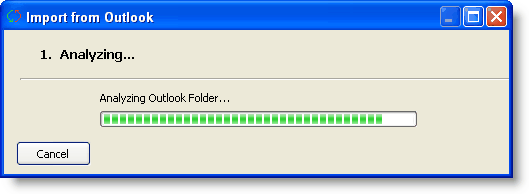
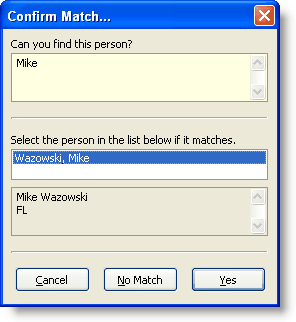
The advantage of importing from Outlook is that you may already have a vast amount of information already in Outlook and this is a relatively quick way to get them into TntMPD. The disadvantage is that TntMPD will compare your entire contact list in Outlook with TntMPD; you cannot pick which ones to import prior to running the Import. So if you have a lot of contacts in Outlook that you do not want in TntMPD, you will have to click "No Match" many times. (You will also have to click "Yes" for each one that does match.)


Import Contacts from Text

Regardless of what software you currently keep your contact list in (Word, Excel, Access, Palm Desktop, etc.), you can export that information to a comma-separated values (.csv) text file, and use that to import into TntMPD.

If you can connect to your organization and download gifts, you may still benefit from importing your contacts because you can control the way their names and addresses appear, as well as import additional information your organization does not store (such as pledge amount and frequency, referrer, birthdays, and much more). Then, when you link to your organization, TntMPD will attempt to match downloaded contacts to your existing list.

Importing contacts should not be regarded as "simple" and should be done only by those who feel comfortable manipulating data in Excel. Also, you may have to use trial and error and attempt to import several times before getting it correct. This topic is not intended to be a step-by-step guide of how to import contacts from a file but rather an overview of the basic concepts.

Regardless of where your existing contacts are, it will be easiest to import them if they are in an Excel file. When you are finished creating the file, you will save the file as a .csv (comma-separated values) file. (You can export Outlook contacts to a .csv format; you can also save Word or Access files directly to .csv.)

The first step in importing contacts is ensuring the purity of your existing list. For example, many missionaries might have a list that looks like this:

Title

First Name

Last Name

Address

City, State Zip

Phone

Mr. & Mrs.

Clark & Lois

Kent

P O Box 123

Metropolis, NY 10019

212-555-1212

TntMPD, however, would want this same contact to appear like this:

Title

Spouse Title

First/Given Name

Spouse First/Given Name

Last/Family Name

Home Street Address

Home City

Home State/ Province

Home Zip/ Postal Code

Home Phone

Mr.

Mrs.

Clark

Lois

Kent

P O Box 123

Metropolis

NY

10019

212-555-1212

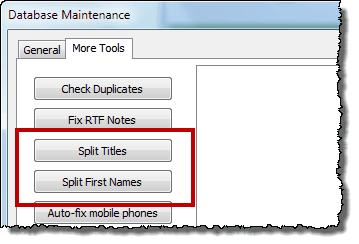
Tip: TntMPD has some special file maintenance features, both Split Titles and Split First Names to help resolve this situation.
Where you really benefit from importing contacts is when you can import existing data that's not available from your organization. For example, your contacts' pledge information and other personal information such as children, birthdays and anniversaries, additional phone numbers and/or email addresses, church name, referrer names, etc.

On most of the biographical fields, you can choose which contacts have information. For example, you may know the church name for only a handful of your contacts.

Many of the data fields require data for every contact if you choose to import that field. For example, if you choose to import the MPD Phase field, you must put an MPD Phase for every contact or the import will not work. This is true of at least the following fields:

MPD Phase (numerical value) (and if you import MPD Phase, you must also import Pledge Amount AND Pledge Frequency)
Pledge Amount
Pledge Frequency
Pledge Received
Send Newsletter (TRUE or FALSE)
Magazine (TRUE or FALSE)
Direct Deposit (TRUE or FALSE)

Once you are ready to import, go to File | Import Contacts. You have to match the fields in your file to TntMPD's fields (that is, you do not have to have the field names perfect in your file before you attempt to import.)