TntConnect has no customizable shortcuts.
Shortcut
|
What it does
|
Menu path to do this
|
Ctrl-A
|
Select All
|
|
Ctrl-C
|
Copy
|
|
Ctrl-L
|
Log Group History
|
|
Ctrl-O
|
Open (another TntConnect database)
|
|
Ctrl-R
|
Add Referrals (in Contact View)
|
|
Ctrl-S
|
Save
|
|
Ctrl-V
|
Paste
|
|
Ctrl-X
|
Cut
|
|
Ctrl-Z
|
Undo
|
|
F1
|
Context-sensitive Help. Hit F1 from any screen and receive help for that screen.
|
|
F2
|
Turn on/off Shortcut bar
|
|
F3
|
Turn on/off Contact list (in Contact View)
|
|
F5
|
Refresh
|
|
F8
|
See your System Information
|
|
F12
|
See address block enlarged (in Contact View)
|
|
Alt-F4
|
Exit
|
|
Shift-Ctrl- Delete
|
Delete Contact
|
|

|
Call Center
|
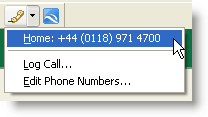
Quick access to call activities (log history for a call, or edit phone numbers)
|
|
Show Google Map
|
Automatically launch a Google Map of the selected contact, if available.
|
|
Everyone
|
|
Tip: Mouse tips
Hover your mouse over buttons or clickable fields; many of them have short tips that will pop up for a moment.
Hover over an e-mail address and the arrow will change to a hand. Click on it and you can send an e-mail message.