Installing SQL Server
NOTE: DonorHub Lite now uses a wizard to automate the installation of SQL Server 2005 Express.
This guide will help you properly install SQL Server 2005 Express onto your computer. SQL Server 2005 Express is made available by Microsoft for no cost. However in some deployment models, a commercial edition of SQL Server 2005 must be used. Check the System Requirements to learn more.
Read More > SQL Server 2005 Express
Read More > System Requirements
Note: It is recommended that you install SQL Server 2005 and DonorHub Lite onto the same computer. However, you may install SQL Server 2005 and DonorHub Lite onto separate computers. But you will have to enable "remote connections" using the "SQL Server Surface Area Configuration" tool. Also, you will have to install the "Connectivity Tools" component of SQL Server 2005 onto each client where DonorHub Lite is installed.
1.Download and Install Microsoft SQL Server 2005 Express
http://www.microsoft.com/downloads/details.aspx?FamilyID=11350b1f-8f44-4db6-b542-4a4b869c2ff1
a. Include all "Database Services" including "Replication", and include "Connectivity Components".
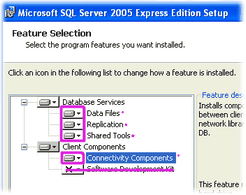
b. Choose "Mixed Mode" for authentication, and remember the password you provide.
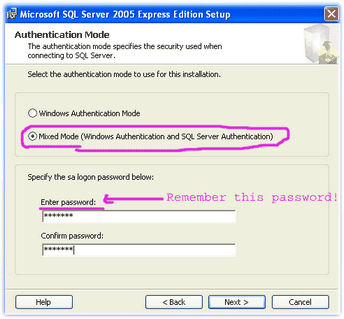
Note: "Mixed Mode" authentication is not necessarily required. DonorHub Lite supports SQL Server with "Windows Authentication Mode Only" as long as DonorHub Lite and the instance of SQL Server you wish to work with are running on the same computer. Also you must run DonorHub Lite with an NT account that has "sysadmin" privileges in SQL Server. Hint: You may right-click on DonorHub Lite and "Run as..." in order to use the desired NT user account.
Optional: Download and Install Microsoft SQL Server Management Studio Express.
http://www.microsoft.com/downloads/details.aspx?familyid=C243A5AE-4BD1-4E3D-94B8-5A0F62BF7796
Next Step: Install DonorHub Lite
Read More > How to Install DonorHub Lite